How to Configure DNS over HTTPS for Maximum Privacy
DNS over HTTPS encrypts your domain name lookups, preventing ISPs and network monitors from tracking your browsing activity. This guide walks you through configuring DoH on browsers, operating systems, and network devices to enhance your online privacy.
On this page
Every time you visit a website, your device quietly asks a DNS server to translate a domain name into an IP address. Traditionally, those queries travel across the internet completely unencrypted — visible to your ISP, your network admin, and anyone else watching the connection. DNS over HTTPS (DoH) fixes this by wrapping those lookups inside standard HTTPS traffic, making them look identical to regular web browsing.
DoH prevents surveillance, tampering, and DNS-level censorship. It doesn't hide your destination once the connection starts — your ISP can still see which IP addresses you're connecting to — but it closes a real privacy gap that exposes your browsing habits before you even reach a site.
How DNS over HTTPS Works
Standard DNS queries run over UDP port 53, completely in the clear. Anyone sitting between you and the DNS server can read, log, or modify those requests. DoH wraps the same queries inside HTTPS connections on port 443, the same port your browser uses for every encrypted website.
When your browser or OS sends a DNS query over DoH, it goes as a normal HTTPS POST or GET request to a DoH-compatible resolver. The resolver processes it and sends back the answer inside the encrypted tunnel. To anyone watching the network, it's indistinguishable from loading a web page.
That buys you three concrete things.
Privacy: Your DNS queries are encrypted between your device and the resolver. Your ISP can see you're talking to the resolver's IP address, but not which domains you're looking up.
Integrity: HTTPS blocks man-in-the-middle attacks that could redirect your queries or inject fake responses. Without it, an attacker on your network can silently point yourbank.com anywhere they want.
Circumvention: Since DoH traffic looks like regular HTTPS, it bypasses DNS-based blocking that networks use for filtering and censorship.
Choosing a DoH Provider
Your DoH resolver sees every domain you look up. That means choosing a trustworthy provider matters just as much as enabling encryption in the first place. Here are the most widely used options:
| Provider | Privacy Policy | Logging | DNSSEC | Filtering Options |
|---|---|---|---|---|
| Cloudflare (1.1.1.1) | No personal data logged | Purged within 24h | Yes | Malware, adult content (optional) |
| Quad9 | No personal IP logging | Does not log IP | Yes | Malware blocking |
| NextDNS | Configurable logging | Optional, user-controlled | Yes | Extensive filtering, analytics |
| AdGuard DNS | Limited logging | Varies by server | Yes | Ads, trackers, malware |
Cloudflare's 1.1.1.1 is fast and doesn't write queries to disk, though it does process them in memory for threat detection. Quad9 operates out of Switzerland and takes a harder line on privacy with zero IP logging. NextDNS gives you granular filtering controls but means trusting a smaller company with your DNS traffic.
Think of it like picking a messaging app. Signal, Telegram, and Session each make different tradeoffs between features and privacy. Signal minimizes metadata collection, Telegram stores messages server-side, and Session routes through an onion network. Your DoH provider works the same way — the choice determines who can see your DNS metadata and under what circumstances.
Configuring DoH on Different Platforms
Firefox
Firefox has built-in DoH support and defaults to Cloudflare in the US. To enable or switch providers:
- Open Settings and search for "DNS"
- Scroll to "DNS over HTTPS"
- Select "Max Protection" to always use DoH
- Choose your provider or paste in a custom URL
Custom DoH URLs look like this:
https://dns.nextdns.io/abc123
https://dns.quad9.net/dns-query
By default, Firefox falls back to system DNS if the DoH resolver goes down. To disable that fallback, open about:config and set network.trr.mode to 3. At that point, DNS either goes through DoH or it doesn't go at all.
Chrome and Chromium Browsers
Chrome automatically upgrades to DoH when it detects your system DNS provider supports it. You can also configure it manually:
- Open Settings → Privacy and security → Security
- Scroll to "Use secure DNS"
- Toggle it on and pick a provider or enter a custom URL
Edge, Brave, and other Chromium-based browsers have the same settings in the same place.
macOS and iOS
Apple added DoH support in macOS Big Sur and iOS 14, but there's no built-in UI for it. You install a configuration profile from your DoH provider, or create one yourself.
To set up system-wide DoH with Cloudflare on a Mac:
curl -O https://developers.cloudflare.com/1.1.1.1/encrypted-dns/apple/Cloudflare.mobileconfig
open Cloudflare.mobileconfig
After downloading, go to System Preferences → Profiles and install it. On iOS, open the .mobileconfig file through the Files app and follow the same steps.
Windows 11
Windows 11 supports DoH natively, though you'll need to configure it through Settings and PowerShell together. Start in Settings → Network & internet → Ethernet or Wi-Fi:
- Click "Edit" next to DNS server assignment
- Switch to Manual and enable IPv4
- Enter your DoH provider's IP address (e.g.,
1.1.1.1for Cloudflare)
Then open PowerShell to register the DoH template for that address:
Get-DnsClientServerAddress
Set-DnsClientServerAddress -InterfaceAlias "Ethernet" -ServerAddresses ("1.1.1.1","1.0.0.1")
Set-DnsClientDohServerAddress -ServerAddress "1.1.1.1" -DohTemplate "https://cloudflare-dns.com/dns-query"
Replace "Ethernet" with your actual interface name from the first command.
Linux and Advanced Configurations
On Linux, you've got three options: configure DoH per-browser, run a local DNS proxy, or go system-wide. The most flexible approach is dnscrypt-proxy, which handles caching and filtering on top of DoH.
Install it:
sudo apt install dnscrypt-proxy
Edit /etc/dnscrypt-proxy/dnscrypt-proxy.toml:
server_names = ['cloudflare', 'quad9-dnscrypt-ip4-filter-pri']
listen_addresses = ['127.0.0.1:53']
require_dnssec = true
Start and enable the service:
sudo systemctl enable dnscrypt-proxy
sudo systemctl start dnscrypt-proxy
Then point your system resolver at it by editing /etc/resolv.conf:
nameserver 127.0.0.1
If you're running a hybrid setup — say, Tor Browser for sensitive browsing alongside regular clearnet apps — configuring DoH on the workstation prevents DNS leaks from anything not going through Tor. The Tor Browser already routes DNS inside the Tor network; it's the other applications you need to worry about.
Router-Level Configuration
Set DoH on your router and every device on the network benefits automatically, no per-device configuration needed. This requires custom firmware like OpenWrt or pfSense.
On OpenWrt, install the DNS proxy package:
opkg update
opkg install https-dns-proxy luci-app-https-dns-proxy
Configure it through the LuCI web interface under Services → HTTPS DNS Proxy. Pick your provider, then set the DHCP server to advertise 127.0.0.1 as the DNS server for the whole network.
DoH Limitations Worth Knowing
DoH encrypts your DNS query, but it doesn't hide the connection that follows. Your ISP can still see you connecting to 104.16.132.229 even if they never saw you look up example.com. For sites behind CDNs or shared hosting, that IP tells them relatively little. For a site with a dedicated IP address, it tells them exactly where you went.
“Privacy is not something that I'm merely entitled to, it's an absolute prerequisite.”
— Marlon Brando
Server Name Indication (SNI) is another gap worth knowing about. During a TLS handshake, your browser announces the hostname it's connecting to in plaintext. Encrypted Client Hello (ECH) solves this, but adoption is still limited. Until ECH rolls out more widely, DoH protects your DNS queries while your TLS handshakes still leak domain names to anyone watching the wire.
Frequently Asked Questions
What is DNS over HTTPS and why does it matter for my privacy?
DNS over HTTPS (DoH) encrypts the requests your browser makes to look up website addresses, so your internet provider or anyone on your network can't see which sites you're visiting. Without it, those lookups are sent in plain text and are easy to monitor or log. Enabling DoH is one of the simplest steps you can take to reduce everyday browsing surveillance.
How do I enable DNS over HTTPS in my browser?
Most modern browsers like Chrome, Firefox, and Edge have a built-in DoH setting you can turn on without installing anything. In Firefox, go to Settings > Privacy & Security > DNS over HTTPS; in Chrome, go to Settings > Privacy and Security > Security > Use secure DNS. Once enabled, your browser handles the rest automatically.
Does using DNS over HTTPS make me completely anonymous online?
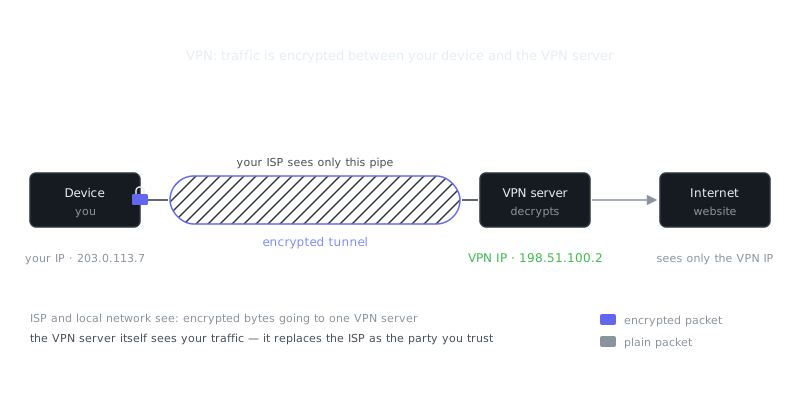
No, DoH only encrypts your DNS lookups — it doesn't hide your IP address or encrypt the rest of your internet traffic. Websites you visit, your internet provider, and other parties can still see your IP address and the destinations of your connections. For broader anonymity, you'd need to combine DoH with a VPN or use a tool like Tor.
Video Resources
Sources & Further Reading
- Tor Project — Official site of the Tor network and Tor Browser.
- Tor Browser Manual — Setup, security levels, bridges and troubleshooting.
- EFF Surveillance Self-Defense — Threat-model based guides from the Electronic Frontier Foundation.
- Privacy Guides — Independent recommendations for privacy-respecting tools.
- Security in a Box — Digital security guides for activists and journalists.
- Tails Documentation — Official documentation for the amnesic live operating system.
- Whonix Documentation — Wiki for the Tor-based Whonix operating system.