How to Set Up and Configure Tor Browser for Maximum Privacy
Tor Browser routes your connection through multiple encrypted relays, making it one of the strongest tools against network surveillance. This guide walks you through installation, configuration, and advanced settings. Whether you're new to Tor or looking to harden your setup, you'll find practical steps here.
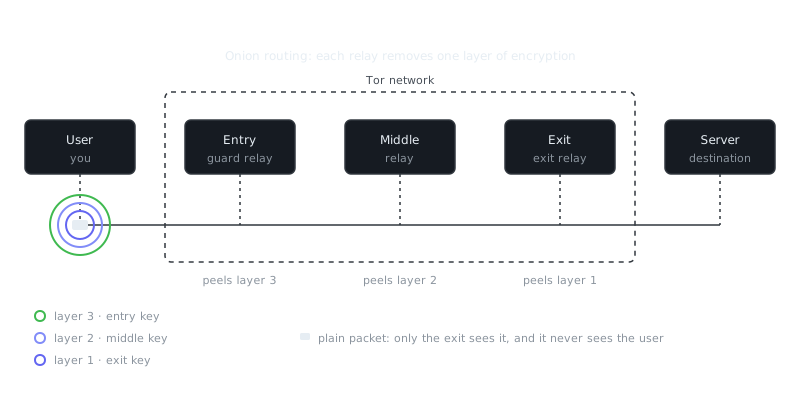
Try it: send a packet through Tor
Your message is wrapped in three layers of encryption. Each relay removes one layer and only learns the next hop; the exit sees the message but not who sent it.
On this page
Tor Browser gives you one of the strongest defenses against network surveillance and traffic analysis available today. VPNs just shift your trust to a different company. Tor is different. It routes your connection through multiple volunteer-operated relays, making it genuinely hard for anyone to connect your identity to what you're browsing. This guide walks you through everything from first install to advanced configuration.
Understanding Tor's Architecture
Tor encrypts your traffic multiple times and routes it through at least three randomly chosen relays: an entry node, a middle relay, and an exit node. Each relay only knows the hop before it and the hop after it — never the full path. The entry node sees your IP but not where you're going. The exit node sees your destination but not your IP. The middle relay sees neither.
That design holds up even if an adversary controls some relays. A single compromised relay reveals almost nothing useful. To pull off a real deanonymization attack, someone would need to control both your entry and exit nodes at the same time, then correlate timing patterns across the network. That's expensive and technically demanding, even for well-funded attackers.
The tradeoff is speed. Every relay adds latency, and exit node bandwidth is limited. Tor isn't built for streaming video or grabbing large files. Where it excels is protecting metadata — who talks to whom, when, and how often. On today's internet, that metadata often matters more than the actual content of your traffic.
Initial Setup and First Launch
Download Tor Browser only from the official Tor Project website (torproject.org) or your Linux distribution's trusted package repository. Always verify the signature before installing:
# On Linux, after downloading
gpg --auto-key-locate nodefault,wkd --locate-keys [email protected]
gpg --verify tor-browser-linux64-*.tar.xz.asc tor-browser-linux64-*.tar.xz
On Windows and macOS, the installer carries embedded signatures that your OS verifies automatically. On Linux, extract the tarball and run the launcher from the resulting folder. No system-wide installation needed — it runs as a self-contained app.
When you first open Tor Browser, it'll ask how you want to connect. Most people can just click "Connect" and move on. If you're in a country that actively blocks Tor, enable bridges — these are specialized entry nodes that aren't published in Tor's public directory. The built-in obfs4 bridges handle most censored environments well. For more aggressive blocking, request a bridge by email or try Snowflake, which tunnels your traffic through temporary proxies running in other people's browsers.
The default security level is "Standard," which gives you strong anonymity while keeping most websites working normally. "Safer" disables JavaScript on non-HTTPS sites and strips some web fonts. "Safest" kills JavaScript entirely along with most media handling. Which one makes sense for you depends on your threat model. Casual privacy users are fine on Standard. If someone might be targeting you specifically, consider bumping it up.
Essential Configuration Changes
Tor Browser ships with solid privacy defaults, but a few tweaks improve the experience without weakening your protection. Get to them through the hamburger menu, then Privacy & Security.
Never resize the browser window manually. Tor Browser opens at standard dimensions on purpose — to prevent fingerprinting based on screen size. Thousands of users share that same window size, so you blend right in. The moment you maximize or resize it, you've created a unique fingerprint. Use the browser's zoom feature if you need things bigger.
Turn off search suggestions. DuckDuckGo is the default search engine, and with suggestions enabled it receives your keystrokes as you type, not just when you hit Enter. Go to Settings → Search and uncheck "Provide search suggestions."
Consider blocking all third-party cookies. Settings → Privacy & Security → Cookies and Site Data → Manage Exceptions lets you block third-party cookies while still allowing first-party ones. Some cross-site functionality will break, but you'll cut your tracking surface significantly.
Check that HTTPS-Only Mode is on. It's enabled by default, but worth confirming. Scroll through Privacy & Security and make sure "Enable HTTPS-Only Mode in all windows" is checked. Without it, anyone running a malicious exit node can read your unencrypted traffic.
If you're comfortable in about:config, verify these settings are active:
network.proxy.socks_remote_dns = true    (verify this is enabled)
privacy.resistFingerprinting = true       (verify this is enabled)
privacy.firstparty.isolate = true         (verify this is enabled)
They should already be set correctly, but it's worth a quick check if something's behaving strangely.
Compartmentalization and Identity Management
Tor Browser isolates each site's data to prevent cross-site tracking. Closing and reopening the browser gives you a fresh identity and a new circuit. But real compartmentalization goes beyond technical settings — it requires you to be deliberate about your behavior.
Keep different activities in different sessions. If you're researching something sensitive while also logged into a personal email account, use separate sessions or separate identities. The "New Identity" button (onion icon → New Identity) wipes all tabs and data and rebuilds your circuits, but for truly unrelated tasks it's cleaner to run separate instances altogether.
Don't mix Tor and non-Tor access to the same accounts. Log into an email account over Tor, then access it later from your real IP, and you've linked your identity to that session. This matters even more with messaging apps. Signal and WhatsApp tie your account to a phone number — using them over Tor doesn't give you meaningful anonymity unless that number can't be traced to you. For genuinely anonymous communication, look at Matrix (with an account registered over Tor), Session, or Briar. These are designed with metadata resistance in mind.
Strip metadata before uploading files. Photos, PDFs, and Office documents can carry surprisingly detailed information. EXIF data in images often includes camera model, GPS coordinates, and timestamps. Word documents embed author names and revision histories. Clean all of that out with mat2 before uploading anything:
# Install mat2
sudo apt install mat2  # Debian/Ubuntu
brew install mat2      # macOS

# Check what metadata exists
mat2 --show document.pdf

# Remove metadata
mat2 --inplace document.pdf photo.jpg
On Windows, ExifTool works well, or you can use the built-in "Remove Properties and Personal Information" option in File Properties — though dedicated tools do a more thorough job.
Security Levels and Threat Models
| Security Level | JavaScript | Media | Use Case | Breaks Sites? |
|---|---|---|---|---|
| Standard | Enabled | Enabled | General privacy, casual anonymity | Rarely |
| Safer | Disabled on HTTP | Limited | Moderate threat model, avoid exploits | Sometimes |
| Safest | Fully disabled | Minimal | High-risk users, targeted surveillance | Frequently |
Security levels exist primarily to protect you from browser exploitation. JavaScript is the main vector for deanonymization attacks. Back in 2013, the FBI deployed JavaScript exploits through seized dark web servers and successfully revealed the real IP addresses of Tor users. Running Safest would have blocked those attacks entirely.
The practical problem is that most of the modern web depends on JavaScript. News sites, search engines, and even many privacy-conscious services break without it. You'll have to make a judgment call based on what you're doing and who might realistically be trying to find you.
“The Internet is a surveillance state.”
— Bruce Schneier
Use Safest when you're accessing controversial content, you're in a country
Frequently Asked Questions
How do I download and install Tor Browser safely?
Download Tor Browser only from the official site at torproject.org to avoid tampered versions. The installation process is straightforward — run the installer and follow the prompts, and no additional configuration is needed to get started.
Do I need to change any settings in Tor Browser for better privacy?
Out of the box, Tor Browser is configured for strong privacy, so most beginners don't need to change anything. If you need extra protection, you can raise the Security Level to 'Safer' or 'Safest' via the shield icon in the toolbar, which limits JavaScript and other potentially identifying features.
Why is Tor Browser slow, and is there anything I can do about it?
Tor routes your traffic through three relays around the world, which naturally adds latency compared to a regular browser. You can try clicking 'New Circuit for this Site' in the site info menu to get a faster relay path, but some slowness is expected and is the trade-off for anonymity.
Video Resources
Sources & Further Reading
- Tor Project — Official site of the Tor network and Tor Browser.
- Tor Browser Manual — Setup, security levels, bridges and troubleshooting.
- Wikipedia: Onion routing — How layered encryption routing works, with history.
- EFF Surveillance Self-Defense — Threat-model based guides from the Electronic Frontier Foundation.
- Privacy Guides — Independent recommendations for privacy-respecting tools.
- Security in a Box — Digital security guides for activists and journalists.
- Tails Documentation — Official documentation for the amnesic live operating system.