Complete Guide to YubiKey and Hardware Security Keys
Passwords alone can't stop modern phishing attacks. Hardware security keys like YubiKey provide physical authentication that stops account takeover even when credentials are compromised. This guide covers how they work, setup, and which key to choose.
On this page
Passwords just aren't enough anymore. Billions of credentials leak every year through data breaches, and phishing attacks have gotten genuinely clever. Hardware security keys solve a problem that no password policy can: they make account takeover physically impossible, even after your password is compromised. YubiKey is the most widely used option out there, and it works by turning authentication into something an attacker can't fake from across the internet.
What Hardware Security Keys Actually Do
A hardware security key is a small USB or NFC device that proves your identity through cryptography. The secret never leaves the device — not to your browser, not to the server, not anywhere. When you log in, the website sends a challenge to your YubiKey, which signs it with a private key stored on the hardware. The server checks that signature against the public key you registered during setup.
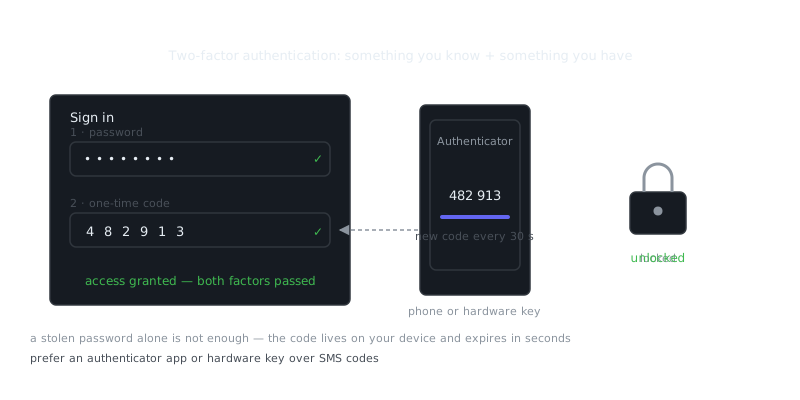
This completely defeats phishing. Even if you type your password into a convincing fake login page, the attacker still can't get in without physically holding your YubiKey. SMS two-factor authentication doesn't hold up here — SIM swapping and social engineering let attackers intercept text messages remotely. A hardware key cuts that attack vector off entirely.
YubiKey supports a wide range of authentication protocols. FIDO2/WebAuthn handles passwordless login. FIDO U2F covers legacy two-factor setups. OATH-TOTP generates time-based codes for services that haven't moved to FIDO yet. PIV handles certificate-based authentication, and OpenPGP covers email encryption and code signing. One key handles everything from your Google account to signing Git commits.
Choosing the Right YubiKey
Yubico makes several models aimed at different setups. Your choice mostly comes down to which ports your devices have and whether you need to tap your phone.
| Model | USB Type | NFC | FIPS 140-2 | Price Range | Best For |
|---|---|---|---|---|---|
| YubiKey 5 NFC | USB-A | Yes | No | $55 | Most users, mobile support |
| YubiKey 5C NFC | USB-C | Yes | No | $55 | Modern laptops, mobile |
| YubiKey 5 Nano | USB-A | No | No | $50 | Permanent laptop attachment |
| YubiKey 5C Nano | USB-C | No | No | $50 | Permanent MacBook attachment |
| Security Key NFC | USB-A | Yes | No | $29 | FIDO2/U2F only, budget option |
| YubiKey 5 FIPS | USB-A | No | Yes | $70 | Government, compliance |
For most people, the YubiKey 5 NFC is the right pick. USB-A works with nearly every desktop and older laptop, and NFC lets you tap to authenticate on your phone. The Security Key NFC is cheaper at $29, but it only supports FIDO protocols — no TOTP, no PGP. If you need any of those features, you'll want a 5 series.
Buy at least two keys. Register both with every account you care about and keep one somewhere safe as a backup. Losing your only key without a backup registered often means going through painful account recovery processes — and sometimes there's no recovery at all.
Setting Up Your YubiKey
Initial setup takes under an hour, but it's worth doing carefully. Most people need FIDO2 for web services and OATH-TOTP for sites that haven't added hardware key support yet.
Configuring FIDO2 Authentication
FIDO2 needs no software installation. Chrome, Firefox, Safari, and Edge all support it natively. Head to your account's security settings — Google, GitHub, Microsoft, Dropbox, and hundreds of other services support FIDO2 today.
For Google accounts:
- Go to myaccount.google.com/security
- Select "2-Step Verification"
- Scroll to "Security keys" and click "Add security key"
- Insert your YubiKey when prompted
- Tap the gold disk on the key
- Name the key so you can identify it later
Do this with your backup key too. Some services cap how many keys you can register, so prioritize your primary and backup first. The private keys generated during registration live only on the YubiKey itself — lose both keys and those credentials are gone for good.
Managing TOTP Codes
Some services still use six-digit time-based codes instead of FIDO2. Rather than storing those secrets in Google Authenticator, you can put them on your YubiKey using the OATH-TOTP feature.
“There are only two types of companies: those that have been hacked and those that will be.”
— Robert Mueller
Install the Yubico Authenticator app, which runs on Windows, macOS, Linux, iOS, and Android. When a service shows you a QR code for "authenticator app setup":
- Open Yubico Authenticator
- Insert your YubiKey
- Click "Add account"
- Scan the QR code or enter the secret key manually
- Give the account a clear name
Your YubiKey only generates codes when it's physically connected or tapped via NFC. That's meaningfully more secure than app-based TOTP, where secrets sit on your phone and malware can potentially extract them. The tradeoff is that you need your key present whenever you generate a code.
Set up both keys with identical TOTP secrets. When scanning the QR code during setup, either save the secret key or scan it twice — once per YubiKey.
PGP Key Storage
If you work with PGP encryption, YubiKeys act as smart cards for storing private keys. Once you move a private key to the YubiKey, it can't be extracted — only used to sign or decrypt. Even if your computer gets compromised, your private key stays safe.
# Generate a new PGP key
gpg --full-generate-key

# Edit the key to add subkeys for signing, encryption, authentication
gpg --expert --edit-key YOUR_KEY_ID

# Move subkeys to YubiKey (irreversible operation)
gpg --edit-key YOUR_KEY_ID
> key 1
> keytocard
> key 2
> keytocard
> save
After moving keys to the YubiKey, you'll need the physical key present to sign Git commits or decrypt emails. The key also requires a PIN separate from your account passwords, so physical theft alone isn't enough — an attacker needs the key and the PIN.
Practical Security Considerations
Hardware keys stop remote attacks, but they shift some risk to the physical world. Someone who steals your YubiKey and knows your password can get in. That's a much harder attack to pull off than stealing a password online, but it's worth thinking about if you're a high-value target.
Set a PIN for PIV and PGP operations. Three wrong PIN attempts locks the key and requires a PUK to reset. Fail enough PUK attempts and the key locks permanently — your data stays protected, but you're on your backup key from that point on.
# Set PIV PIN (default is 123456)
ykman piv access change-pin

# Set PGP PIN (default is 123456)
ykman openpgp access set-pin

# Set FIDO2 PIN for passwordless login
ykman fido access change-pin
Keep your backup key somewhere separate from your primary. If both are in the same laptop bag and it gets stolen, you're locked out of everything. A safe deposit box, a locked drawer at home, or a trusted family member's place all work well. Whenever you register your primary key to a new service, register the backup too.
Think about your actual threat model here. For most people, YubiKeys defend against phishing, credential stuffing, and remote account takeover — which covers the vast majority of real attacks. They don't protect against malware already running on your machine, keyloggers capturing passwords before they reach the browser, or someone with physical access to your unlocked computer. Strong passwords still matter, because the YubiKey proves you have the key, not that you're the person who originally created the account.
Beyond Basic Logins
SSH access to servers can require a YubiKey, which eliminates the risk of stolen SSH keys entirely. You can configure OpenSSH to use the key's PIV or FIDO2 capabilities:
# Generate FIDO2-resident SSH key
ssh-keygen -t ed25519-sk -C "[email protected]"

# The key is stored on the YubiKey itself
Frequently Asked Questions
What is a YubiKey and why do I need one?
A YubiKey is a small physical device you plug into your computer or tap to your phone to verify your identity when logging in. It acts as a second factor of authentication, meaning even if someone steals your password, they still can't access your accounts without the physical key. It's one of the strongest ways to protect accounts from phishing and unauthorized access.
How do I set up a YubiKey with my accounts?
Most major services like Google, GitHub, and Microsoft let you add a security key under their two-factor authentication settings — look for an option labeled 'Security Key' or 'Hardware Key.' You plug in the YubiKey, click the button when prompted, and the site registers it to your account. After that, each login will ask you to insert and tap the key to confirm it's really you.
What happens if I lose my YubiKey?
If you lose your YubiKey, you can still regain access to your accounts using backup codes or a secondary authentication method, which is why it's important to save backup codes when you first set up two-factor authentication. Most services also let you register more than one security key, so keeping a spare YubiKey stored safely is a good precaution. Once you're back in, you should immediately remove the lost key from your account settings.
Video Resources
Sources & Further Reading
- Yubico Documentation — Official guides for YubiKey setup and use.
- NIST Cybersecurity Framework — Reference framework for identifying, protecting and responding to threats.
- EFF — Digital rights organisation with security explainers.
- OWASP — Open standards and cheat sheets for application security.
- GnuPG Documentation — Manuals and how-tos for GPG key management and encryption.
- CISA — US cybersecurity agency guidance for individuals and organisations.
- Have I Been Pwned — Check whether an email or password appeared in a known breach.