Two-Factor Authentication: Complete Setup Guide
Two-factor authentication (2FA) adds a critical second layer of security beyond passwords. This guide walks you through choosing and implementing the right 2FA method for your accounts, from authenticator apps to hardware keys.
On this page
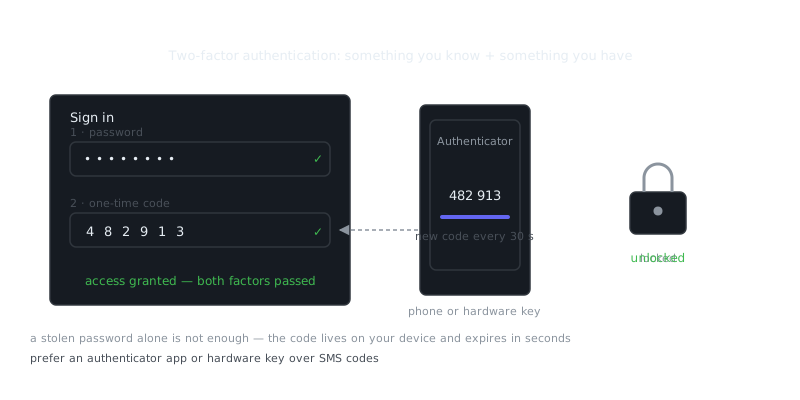
Two-factor authentication (2FA) adds a second verification step to the login process. You need to prove your identity through something you know (a password) and something you have or are — a device, biometric, or one-time code. Even if an attacker gets your password through phishing, credential stuffing, or a data breach, they can't access the account without that second factor. This guide covers how 2FA works, the different types available, how to implement it, and how to pick the right method for your situation.
How Two-Factor Authentication Works
Authentication factors fall into three categories.
Something you know covers passwords, PINs, and security questions. Something you have means a phone, hardware token, or smart card. Something you are refers to fingerprint, face ID, or retina scan.
2FA combines any two of these. The most common pairing is a password plus a time-based one-time password sent to your phone. When you log in, the server validates your password first, then asks for the second factor. You only get in when both pass.
Most 2FA implementations use TOTP — Time-Based One-Time Password, defined in RFC 6238. It takes a shared secret and the current Unix timestamp, then produces a six-digit code valid for 30 seconds.
TOTP = HOTP(secret, floor(current_unix_time / 30))
HOTP = HMAC-SHA1(secret, counter)
Codes expire fast and can't be reused, which shuts down replay attacks.
Types of Two-Factor Authentication
Not all 2FA methods are equal. Here's how the main options stack up.
SMS-Based 2FA
A one-time code gets sent to your phone via text. It's the most widely deployed method because it needs no app and works on any phone. It's also the weakest option. SIM swapping — where an attacker convinces your carrier to transfer your number to their device — and SS7 protocol vulnerabilities can let someone intercept those codes. If your account holds anything sensitive, SMS 2FA isn't good enough.
Authenticator Apps (TOTP)
Apps like Google Authenticator, Authy, and 1Password generate TOTP codes locally on your device. No network connection needed after setup, and the shared secret lives on your device rather than getting transmitted with every login. It's significantly more secure than SMS and widely supported. Authy and 1Password both support encrypted cloud backup for secrets, which makes switching devices much less painful.
Hardware Security Keys (FIDO2 / WebAuthn)
Physical devices like YubiKey use public-key cryptography. During registration, the key generates a key pair and stores the private key securely on the hardware. At login, the server sends a challenge and the key signs it with the private key. The server then verifies that signature using the public key it stored at registration.
What makes this method stand out is that it's phishing-resistant. The key cryptographically binds authentication to the domain, so a phishing site on paypa1.com can't trigger a valid response for paypal.com. Hardware keys are the strongest form of 2FA and the right choice for privileged accounts, administrators, and anyone with access to sensitive infrastructure.
Push Notifications
Apps like Duo Security and Microsoft Authenticator send a push notification to your phone when a login attempt happens. You approve or deny it with one tap. It's more user-friendly than typing in a code, but it requires your phone to be online. It's also vulnerable to MFA fatigue attacks, where an attacker floods you with approval requests until you tap accept by mistake.
Biometrics
Fingerprint and face recognition serve as a second factor in mobile apps and operating systems. Biometric data is typically processed locally on your device and never transmitted to a server, which keeps exposure limited. The catch is that biometrics can't be changed if they're compromised — unlike a password or a shared secret.
Comparing 2FA Methods
| Method | Phishing Resistant | No Network Required | Ease of Use | Recovery Risk |
|---|---|---|---|---|
| SMS | No | Yes | High | Low |
| TOTP App | Partial | Yes | Medium | Medium |
| Hardware Key | Yes | Yes | Medium | Low (if backup key) |
| Push Notification | No | No | High | Low |
| Biometric | Depends | Yes | Very High | High (irreplaceable) |
For most people and organizations, TOTP apps hit the best balance of security and usability. If you're managing servers, cloud infrastructure, or sensitive data, a hardware key is worth every penny.
Implementing 2FA: Practical Examples
Enabling TOTP on a Linux Server (SSH)
You can require TOTP for SSH logins using libpam-google-authenticator.
# Install the PAM module
sudo apt install libpam-google-authenticator

# Run setup as each user who needs 2FA
google-authenticator

# Edit PAM config for SSH
sudo nano /etc/pam.d/sshd
Add this line at the top of /etc/pam.d/sshd:
auth required pam_google_authenticator.so
Then update /etc/ssh/sshd_config:
ChallengeResponseAuthentication yes
AuthenticationMethods publickey,keyboard-interactive
sudo systemctl restart sshd
This configuration requires both a public key and a TOTP code to log in — a strong combination for server access.
Adding 2FA to a Node.js Application
const speakeasy = require('speakeasy');
const qrcode = require('qrcode');

// Generate a secret for a new user
const secret = speakeasy.generateSecret({ name: 'MyApp ([email protected])' });

// Generate a QR code for the user to scan
qrcode.toDataURL(secret.otpauth_url, (err, dataUrl) => {
  // Send dataUrl to frontend to display QR code
});

// Store secret.base32 in the user's record (encrypted at rest)

// Verify a submitted token
const verified = speakeasy.totp.verify({
  secret: secret.base32,
  encoding: 'base32',
  token: userSubmittedToken,
  window: 1  // Allow 1 step drift (30 seconds) for clock skew
});
Store that secret encrypted at rest. If your database gets compromised and the 2FA secrets are sitting there in plaintext, an attacker has everything they need to bypass the second factor entirely.
2FA in the Context of a Broader Security Strategy
Two-factor authentication is one layer in a defense-in-depth approach. It belongs on your security audit checklist alongside password policies, access logging, and session management. It doesn't replace strong passwords — it reinforces them.
Worth keeping in mind: 2FA doesn't help if an attacker already has persistent access to your device through malware, or if they can grab your session cookies after a successful login. Pair 2FA with short session timeouts, secure cookie flags, and monitoring for unusual login patterns.
For anyone handling sensitive communications, combining 2FA with end-to-end encryption tools makes sense. A PGP encryption guide covers how asymmetric cryptography protects message content in transit, while 2FA protects access to the accounts sending and receiving those messages. They solve different problems and work well together.
Recovery Codes and Account Lockout
Every 2FA setup needs a recovery plan. Most services generate a set of single-use backup codes when you enable 2FA. These codes bypass the second factor and are meant for emergencies — like losing access to your authenticator app.
A few rules worth following: print them and keep them somewhere physically secure. Store them in a password manager as an encrypted note. Never put them in the same place as your password. Regenerate them immediately if you think they've been exposed.
For TOTP specifically, if you use an app with encrypted backup support like Authy, 1Password, or Bitwarden, turn it on. If your app doesn't support backup, photograph the QR code or copy the manual entry key when you set things up, and store it securely with your backup codes.
Summary and Key Takeaways
Two-factor authentication is one of the most effective controls you have for protecting accounts, and it's no longer optional for anything that matters.
“The only secure computer is one that's unplugged, locked in a safe, and buried 20 feet under the ground in a secret location.”
— Dennis Hughes
SMS 2FA is better than nothing but should be replaced with TOTP or a hardware key wherever possible.
Frequently Asked Questions
What is two-factor authentication and why do I need it?
Two-factor authentication (2FA) adds a second step to your login process, requiring both your password and a temporary code from your phone or email. This means even if someone steals your password, they still can't access your account without that second code. It's one of the simplest and most effective ways to protect your online accounts.
How do I set up two-factor authentication on my account?
Most services let you enable 2FA in your account's security or privacy settings, usually under an option like 'Two-Factor Authentication' or 'Login Verification'. You'll typically choose to receive codes via a text message, email, or an authenticator app like Google Authenticator or Authy. Follow the on-screen steps to link your phone or app, then verify with a test code to confirm it's working.
What should I do if I lose access to my two-factor authentication device?
When you set up 2FA, most services provide backup codes — save these in a secure place like a password manager or printed in a safe spot. If you've lost both your device and your backup codes, you'll need to go through the service's account recovery process, which usually involves verifying your identity via email or ID. To avoid being locked out, it's a good habit to register a backup phone number or save those recovery codes before you ever need them.
Video Resources
Sources & Further Reading
- Tor Project — Official site of the Tor network and Tor Browser.
- Tor Browser Manual — Setup, security levels, bridges and troubleshooting.
- Wikipedia: Onion routing — How layered encryption routing works, with history.
- Yubico Documentation — Official guides for YubiKey setup and use.
- NIST Cybersecurity Framework — Reference framework for identifying, protecting and responding to threats.
- EFF — Digital rights organisation with security explainers.
- OWASP — Open standards and cheat sheets for application security.