Password Manager Comparison: Choosing the Right Tool for Your Security Stack
Not all password managers are built the same. This guide compares the leading options across security architecture, sync models, and platform support so you can choose the one that fits your threat model and workflow.
On this page
A weak or reused password is still one of the most common ways accounts get compromised. Password managers fix this by generating, storing, and autofilling strong, unique credentials for every account you own. But they're not all built the same — they differ in architecture, sync model, platform support, and how they handle your threat model. Here's a breakdown of the major options so you can pick the right one for your situation.
Why Password Managers Matter
Most people manage somewhere between dozens and hundreds of accounts. Reusing passwords across services means one breach can cascade into full identity compromise. Password managers make that problem go away by making unique, high-entropy passwords practical to use everywhere.
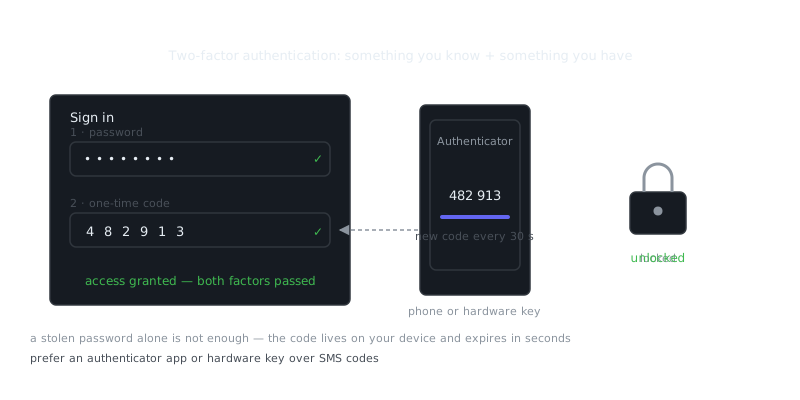
They also slot naturally into a broader security setup. Pair a password manager with two-factor authentication and hardware tokens like YubiKeys, and you've meaningfully raised the cost of attacking your accounts. They're not a silver bullet, but they're a foundational layer you shouldn't skip.
Types of Password Managers
Cloud-Based Managers
Cloud-based managers sync your encrypted vault across devices through a hosted service. Your data gets encrypted client-side before it ever leaves your machine, so the provider theoretically never sees your plaintext passwords.
Examples: 1Password, Bitwarden, Dashlane, LastPass
These are the most convenient option. Sync, backup, and device handoff happen automatically. The tradeoff is that your encrypted vault lives on a third-party server. When LastPass was breached in 2022, attackers walked away with encrypted vaults and could attempt offline attacks using the master password hash. That's a real risk worth understanding.
Local / Offline Managers
These keep your vault entirely on your device or in a file you control.
Examples: KeePassXC, KeePass
You own the vault file completely. Sync is opt-in — you can use a cloud drive, Syncthing, or keep it fully air-gapped. Think of it as the cold storage approach to passwords: maximum control, maximum responsibility. There's no hosted service to breach, but losing your vault file means losing your passwords, so backups matter enormously here.
Self-Hosted Managers
Bitwarden (via Vaultwarden) and Passbolt let you run the server yourself. You get cloud-sync convenience while keeping data on infrastructure you actually control. It requires some operational work — patching, backups, uptime — but it's a solid option for teams or technically capable individuals who want the best of both worlds.
Head-to-Head Comparison
| Feature | 1Password | Bitwarden | KeePassXC | Dashlane | LastPass |
|---|---|---|---|---|---|
| Open source | No | Yes | Yes | No | No |
| Self-hosted option | No | Yes | File-based | No | No |
| Free tier | No (trial only) | Yes | Yes | Limited | Yes (limited) |
| Local vault option | No | No (unless self-hosted) | Yes | No | No |
| Browser extension | Yes | Yes | Yes | Yes | Yes |
| Mobile apps | Yes | Yes | Yes | Yes | Yes |
| Hardware key (FIDO2) | Yes | Yes (premium) | No | Yes | Yes |
| Emergency access | Yes | Yes (premium) | No | Yes | Yes |
| Audit history | Yes | Yes (enterprise) | No | Yes | Yes |
| Price (individual/yr) | ~$36 | Free / ~$10 | Free | ~$33 | Free / ~$36 |
Prices approximate as of 2024. Always verify current pricing on vendor sites.
Security Architecture Deep Dive
Encryption Model
All reputable password managers use AES-256 for vault encryption. What actually separates them is how they derive your encryption key from your master password.
1Password uses PBKDF2-SHA256 combined with a Secret Key — a 128-bit random value stored only on your devices. Even if someone gets your master password, they can't decrypt your vault without that Secret Key, which never leaves your devices.
Bitwarden uses PBKDF2 with 600,000 iterations on the client by default, or Argon2id if you prefer. You can configure the iteration count yourself.
KeePassXC supports AES-256, ChaCha20, and Argon2 for key derivation, and you can configure it per database.
For KeePassXC, check your current encryption settings here:
File → Database Settings → Encryption → Key Derivation Function
For Bitwarden's CLI, here's how to get started:
# Install Bitwarden CLI
npm install -g @bitwarden/cli

# Log in
bw login

# Sync vault
bw sync

# Retrieve a specific item
bw get item "GitHub"

# Generate a strong password
bw generate --length 32 --uppercase --lowercase --number --special
Zero-Knowledge Architecture
Zero-knowledge means the provider can't read your vault. Bitwarden, 1Password, and Dashlane all make this claim. LastPass claimed it too — right up until their 2022 breach revealed they were storing vault metadata poorly and had applied PBKDF2 iterations inconsistently, with some accounts using as few as 1 iteration.
The lesson here is straightforward: zero-knowledge claims need to be backed by audits and open-source code, not marketing copy. Trust, but verify.
Hardware Key Integration
For accounts that support it, binding your password manager to a hardware security key adds a strong second factor. Even with your master password in hand, an attacker can't unlock the vault without physical possession of the key.
1Password and Bitwarden Premium both support FIDO2/WebAuthn keys. KeePassXC doesn't natively support hardware keys for vault unlock, though you can manually combine it with a key file stored on a hardware token if you want that layer of protection.
Choosing Based on Your Threat Model
For Most Individuals
Bitwarden is the strongest default choice. It's open source and has been independently audited, offers a generous free tier, supports FIDO2 hardware keys on premium, and gives you a self-hosting path if you want more control later. Publicly reviewable code is the most honest form of security claim there is.
1Password is a strong alternative if you want a more polished experience and appreciate the Secret Key architecture. It's not open source, but it has received independent audits and has a solid track record.
For High-Security or Air-Gapped Environments
KeePassXC with a local vault makes sense when you won't trust any cloud service with your data. Store the vault on an encrypted drive, back it up to offline storage, and you have full custody of your credentials.
# Example: Keeping a KeePass vault on an encrypted external drive (Linux)
# Create encrypted container with cryptsetup
sudo cryptsetup luksFormat /dev/sdX1
sudo cryptsetup open /dev/sdX1 vault_drive
sudo mkfs.ext4 /dev/mapper/vault_drive
sudo mount /dev/mapper/vault_drive /mnt/vault

# Move your .kdbx file here
cp ~/passwords.kdbx /mnt/vault/
For Teams and Organizations
1Password Teams or Bitwarden for Organizations both offer shared vaults, role-based access, and audit logs. Self-hosted Vaultwarden or Passbolt are worth considering for teams that need credentials to stay on internal infrastructure entirely.
For Families
1Password Families ($5/month for 5 users) and Bitwarden Families ($3.33/month for 6 users) both include shared vault features. These make it practical to share household credentials — Wi-Fi passwords, streaming services, utilities — without sending anything sensitive through a messaging app.
Migration and Setup
Switching password managers is pretty painless. Most support CSV import/export, and the process looks roughly like this:
- Export your vault from the old manager (CSV or its proprietary format)
- Import into the new manager
- Verify all entries transferred correctly
- Enable 2FA on your new account
- Revoke access from the old manager and delete your account
One thing to be careful about: CSV exports contain all your passwords in plaintext. Delete the export file immediately after the import, and don't do this on a shared or public machine.
“The only secure computer is one that's unplugged, locked in a safe, and buried 20 feet under the ground in a secret location.”
— Dennis Hughes
For Bitwarden specifically:
# Import via CLI
bw import --format lastpasscsv /path/to/export.csv

# Immediately shred the plaintext export — don't just delete it
shred -u /path/to/export.csv
Frequently Asked Questions
What is a password manager and do I really need one?
A password manager is an app that stores and remembers all your passwords securely, so you only need to remember one master password. Without one, most people reuse the same weak passwords across sites, which is a major security risk — if one account gets breached, attackers can access all your others.
Are password managers safe to use?
Yes, reputable password managers encrypt your data locally before it ever leaves your device, meaning even the company can't see your passwords. Look for managers that use AES-256 encryption and have undergone independent security audits, such as Bitwarden, 1Password, or Dashlane.
What's the difference between free and paid password managers?
Free tiers, like Bitwarden's, typically cover the basics — storing unlimited passwords and syncing across devices. Paid plans usually add features like secure password sharing, emergency access, dark web monitoring, and priority support, which are useful but not essential for most beginners.
Video Resources
Sources & Further Reading
- Have I Been Pwned — Check whether an email or password appeared in a known breach.
- NIST Cybersecurity Framework — Reference framework for identifying, protecting and responding to threats.
- EFF — Digital rights organisation with security explainers.
- OWASP — Open standards and cheat sheets for application security.
- GnuPG Documentation — Manuals and how-tos for GPG key management and encryption.
- CISA — US cybersecurity agency guidance for individuals and organisations.
- Wikipedia: Pretty Good Privacy — Background on PGP, OpenPGP and the web of trust.