How to Encrypt Your Email with PGP
Email transmits in plain text by default, exposing your messages to ISPs, providers, and attackers. PGP encryption ensures only your intended recipient can read what you send. This guide walks you through how it works and how to get started.
On this page
Email was never built with privacy in mind. When you send a message, it passes through multiple servers as plain text — readable by your ISP, email providers, or an attacker sitting on the same coffee shop WiFi. PGP (Pretty Good Privacy) fixes this by encrypting your email so only the intended recipient can read it, and by letting you digitally sign messages to prove they actually came from you.
This guide covers how PGP works, how to set it up, and how to use it without it becoming a burden.
How PGP Works
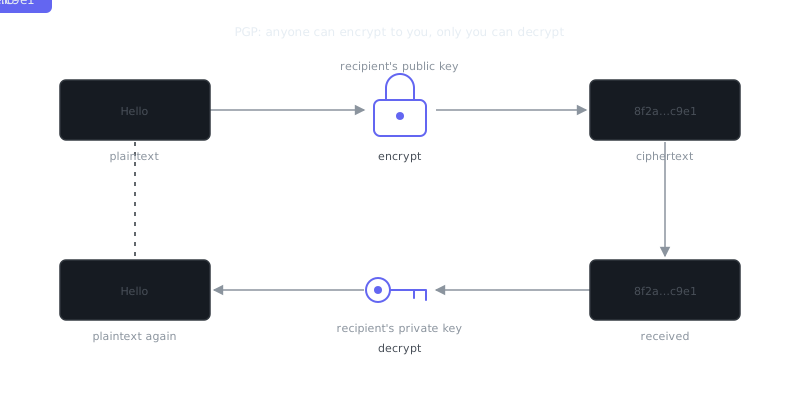
PGP uses asymmetric cryptography, which means every user gets two mathematically linked keys: a public key and a private key.
Your public key is shared openly. Anyone who wants to send you an encrypted email uses it to lock the message. Your private key stays secret on your device and is the only thing that can unlock messages encrypted with your public key.
What makes this elegant is that you never need to share a secret with your contact beforehand. You just exchange public keys and you're ready.
Encryption and Signing
PGP does two distinct things, and it's worth understanding both.
Encryption protects message content. You encrypt outgoing messages with the recipient's public key, they decrypt with their private key, and nobody in between can read a thing.
Digital signatures verify identity. You sign a message with your private key, and the recipient checks the signature against your public key. This confirms the message genuinely came from you and wasn't modified in transit.
You can use these independently or together. Signing without encrypting is common in software distribution — it lets developers prove a release package hasn't been tampered with.
Setting Up PGP
Generating a Key Pair
GnuPG (GPG) is the standard open-source implementation of OpenPGP. It's pre-installed on many Linux systems and easy to get everywhere else.
# Install GPG on Debian/Ubuntu
sudo apt install gnupg

# Install GPG on macOS via Homebrew
brew install gnupg

# Generate a new key pair
gpg --full-generate-key
During setup, you'll choose a key type (RSA 4096-bit is a solid default), set an expiration date, and create a passphrase. That passphrase protects your private key if someone ever gets physical access to your device.
# List your keys to confirm creation
gpg --list-keys

# Export your public key to share with others
gpg --armor --export [email protected] > publickey.asc
Key Expiration and Revocation
Set an expiration date when you generate your key. One to two years is reasonable. Expiration forces periodic key rotation and limits the damage if a key is quietly compromised without your knowledge. You can always extend it before it lapses, so there's no real downside.
More importantly: generate a revocation certificate right after creating your key, and store it somewhere secure and offline. If your private key is ever compromised, you publish that certificate so anyone who has your public key knows to stop trusting it.
# Generate a revocation certificate
gpg --gen-revoke [email protected] > revoke.asc
Distributing and Verifying Public Keys
Having a key pair is only half the equation. Others need to find your public key and trust that it's actually yours.
Key Servers
Key servers are public directories for uploading and searching public keys. The two most common are keys.openpgp.org and keyserver.ubuntu.com.
# Upload your public key to a key server
gpg --keyserver keys.openpgp.org --send-keys YOUR_KEY_ID

# Search for someone else's key
gpg --keyserver keys.openpgp.org --search-keys [email protected]

# Import a key from a file
gpg --import publickey.asc
Web of Trust vs. Direct Verification
PGP's decentralized trust model is called the Web of Trust. When you sign someone's public key, you're telling the world that you've verified it belongs to them. Others who trust you can transitively extend that trust outward.
“The only secure computer is one that's unplugged, locked in a safe, and buried 20 feet under the ground in a secret location.”
— Dennis Hughes
In practice, the Web of Trust is hard to bootstrap unless you're already in a community where people do this regularly. For most users, direct verification is more practical. After exchanging keys with a contact, verify the key fingerprint over a separate channel — a phone call, in person, or through a verified messaging app. The fingerprint is a short hash of the public key, easy to read aloud.
# View a key fingerprint
gpg --fingerprint [email protected]
For higher-stakes situations, hardware security keys like YubiKey store your private key in tamper-resistant hardware. The key material never touches your operating system's file system, which is a meaningful protection against malware that reads memory or files.
Encrypting and Decrypting Email
Using GPG on the Command Line
# Encrypt a message for a recipient (outputs encrypted file)
gpg --armor --encrypt --recipient [email protected] message.txt

# Sign and encrypt in one step
gpg --armor --sign --encrypt --recipient [email protected] message.txt

# Decrypt a received message
gpg --decrypt message.txt.asc

# Verify a detached signature
gpg --verify message.txt.sig message.txt
Email Client Integration
Command-line GPG is powerful but not something most people want to do for every email. Fortunately, the major email clients have solid PGP integration.
| Email Client | PGP Integration Method | Platform |
|---|---|---|
| Thunderbird | Built-in OpenPGP (v78+) | Windows, macOS, Linux |
| Apple Mail | GPG Suite plugin | macOS |
| Outlook | Gpg4win / Kleopatra | Windows |
| Mutt / NeoMutt | Native GPG support | Linux / macOS |
| Proton Mail | Built-in, automatic | Web, mobile |
| K-9 Mail | OpenKeychain integration | Android |
Thunderbird is the most accessible starting point for most people. Its built-in OpenPGP support lets you import or generate a key directly in the client, and it handles encryption and decryption automatically when you compose and read messages.
Practical Considerations and Limitations
What PGP Protects and What It Doesn't
PGP encrypts the message body and attachments. It doesn't touch metadata. Subject lines, sender and recipient addresses, timestamps, and routing information all remain visible. Someone watching network traffic can see that you're communicating with a specific person and when, even if they can't read the content.
A common convention when the content is sensitive: write a generic subject like "Message" or leave it blank entirely.
Key Management Is the Hard Part
Honestly, key management is where PGP gets difficult for most people. Lose your private key without a backup and you permanently lose access to every encrypted message ever sent to that key. Forget your passphrase and the same applies. There's no recovery flow, no "forgot your password" link.
A few habits that prevent this from becoming a disaster:
Back up your private key and revocation certificate to encrypted offline storage — a USB drive kept somewhere physically secure works fine. Use a strong passphrase you can actually remember, not a short throwaway password. If your threat model includes targeted malware attacks, move your private key to a YubiKey, which prevents key extraction even on a compromised system.
When PGP Is Actually the Right Tool
PGP makes the most sense for journalist-source communication, sending sensitive documents (legal, financial, medical) by email, developers signing software releases and commits, and organizations exchanging sensitive operational data with known contacts.
For casual private messaging, Signal is the better choice. It's easier, has better usability, and offers forward secrecy — something PGP doesn't. Without forward secrecy, if your private key is compromised later, an attacker who captured your encrypted emails in the past can go back and decrypt all of them. That's a real limitation worth knowing about.
For teams worried about threats on shared networks, combining PGP with a VPN and enforced HTTPS creates defense in depth. Network-layer protection and application-layer encryption cover different attack surfaces, so they complement each other.
Malware Undermines Everything
Encryption is only as strong as the device running it. If your system is infected with malware that logs keystrokes or reads clipboard contents, an attacker can grab your passphrase or intercept plaintext before it's ever encrypted. Keeping your system clean — through regular updates, avoiding sketchy downloads, and running endpoint protection — isn't optional. It's a prerequisite for any encryption tool to work as intended.
Summary and Key Takeaways
PGP provides robust email encryption and identity verification for situations where privacy genuinely matters. Getting it right takes some upfront effort: generating keys properly, distributing your public key, verifying contacts, and staying on top of key management. But for journalists, developers, and anyone sending documents that need to stay confidential, that effort is worth it. Just go in knowing its limits — particularly around metadata and forward secrecy — and pair it with the right tools for the rest of your threat model.
Frequently Asked Questions
What is PGP encryption and why should I use it for email?
PGP (Pretty Good Privacy) is a method of encrypting your emails so only the intended recipient can read them. It works by using a pair of keys — a public key you share with others and a private key only you hold. It's useful when you need to send sensitive information like passwords, financial data, or private communications.
Do both the sender and receiver need PGP set up to use it?
Yes, both sides need PGP in order to exchange encrypted emails. The sender encrypts the message using the recipient's public key, and the recipient uses their private key to decrypt it. If the recipient doesn't have PGP configured, they won't be able to read an encrypted message.
Is PGP hard to set up as a beginner?
It has a bit of a learning curve, but tools like GPG (GNU Privacy Guard) and email plugins such as Thunderbird's built-in OpenPGP support make it much more approachable. The main steps are generating your key pair, sharing your public key, and importing the public keys of people you communicate with. Once it's set up, sending encrypted emails becomes fairly routine.
Video Resources
Sources & Further Reading
- GnuPG Documentation — Manuals and how-tos for GPG key management and encryption.
- Wikipedia: Pretty Good Privacy — Background on PGP, OpenPGP and the web of trust.
- EFF Surveillance Self-Defense — Threat-model based guides from the Electronic Frontier Foundation.
- EFF — Digital rights organisation with security explainers.
- OWASP — Open standards and cheat sheets for application security.
- NIST Cybersecurity Framework — Reference framework for identifying, protecting and responding to threats.
- CISA — US cybersecurity agency guidance for individuals and organisations.