How to Stay Safe on Public WiFi Networks
Public WiFi networks in coffee shops, airports, and hotels offer convenience but expose you to serious security risks. This guide covers the attack vectors you face on open networks and the practical steps you can take to protect your data, from using a VPN to recognizing fake hotspots.
On this page
Public WiFi is everywhere — coffee shops, airports, hotels, libraries. It's convenient, but it's also one of the easiest ways to get your data stolen. When you connect to a public network, you're sharing infrastructure with complete strangers, and in most cases, that network has little to no security built into it. Whether you're checking email at the airport or logging into your bank from a hotel lobby, knowing what you're up against matters.
“The only secure computer is one that's unplugged, locked in a safe, and buried 20 feet under the ground in a secret location.”
— Dennis Hughes
How Public WiFi Exposes You
Your home network and a coffee shop's WiFi are not the same thing. Most public networks use no encryption at all, or they rely on a shared password written on a chalkboard — which means anyone sitting nearby can intercept traffic between your device and the router. That opens the door to several real threats.
Man-in-the-middle attacks are the most common. An attacker positions themselves between your device and the server you're trying to reach, capturing data in transit. Login credentials, session tokens, personal messages — all of it becomes readable. And even if the network has a password, that protection is mostly theater. Everyone on the network has the same key, so it doesn't really protect you from each other.
Evil twin attacks take things a step further. Someone sets up a fake access point with a convincing name like "Starbucks Guest" or "Airport_Free_WiFi" and waits. Your device might auto-connect if it recognizes the name from a previous network. Once you're on it, all your traffic flows straight through the attacker's machine.
Session hijacking is sneakier. Plenty of websites use HTTPS for the login page but quietly drop back to HTTP after you're in. If an attacker grabs your session cookie at that point, they can impersonate you without ever knowing your password. You logged in securely and it still didn't matter.
Malware distribution can happen when attackers compromise the network itself or exploit file-sharing features that your device left on. Windows machines set to "Public" network mode handle this reasonably well, but devices configured for home sharing can accidentally expose folders or allow incoming connections.
Essential Protections
Use a VPN on Every Public Network
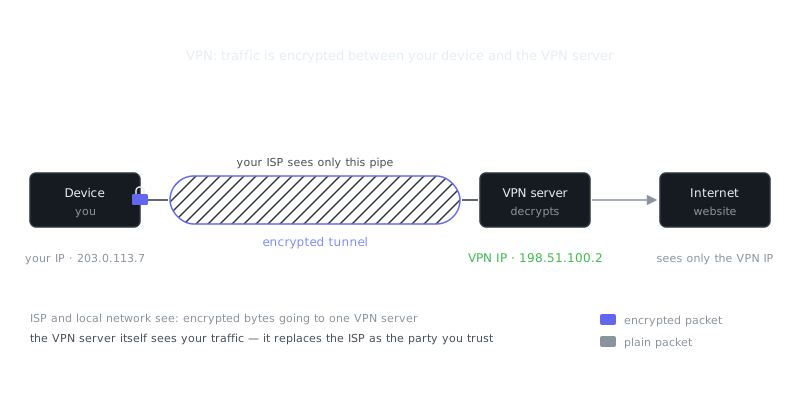
A VPN encrypts all traffic between your device and the VPN server, which makes man-in-the-middle attacks pointless. Someone can intercept your packets all they want — they'll just see noise.
Pick a provider with a verified no-logs policy and solid encryption standards like WireGuard or OpenVPN with AES-256. Don't use a free VPN. Many of them log your activity and sell it, which defeats the entire point.
You can set up automatic connections so you don't have to remember to turn it on:
# macOS: Create a VPN auto-connect script
networksetup -listallnetworkservices
networksetup -connectpppoeservice "VPN Name"
# Linux: NetworkManager with VPN auto-connect
nmcli connection modify "VPN Name" connection.autoconnect yes
nmcli connection modify "VPN Name" connection.secondaries "your-wifi-uuid"
On your phone, look for the "auto-connect on untrusted networks" setting inside your VPN app. Most modern apps can detect when you're not on a known home network and connect automatically.
Verify HTTPS Everywhere
HTTPS encrypts traffic between your browser and the site you're visiting, which helps even on hostile networks. Use a browser that upgrades connections automatically, or install the HTTPS Everywhere extension.
Before you enter credentials or any sensitive data, check for the lock icon in the address bar. Click it and verify the certificate is valid and issued to the right domain. Attackers build convincing fake login pages all the time, sometimes with tiny domain misspellings like paypa1.com instead of paypal.com. It's easy to miss when you're in a hurry.
For accounts you care about, bookmark the login page directly rather than clicking links or typing the URL fresh each time. That one habit eliminates a whole category of phishing attacks.
Disable Automatic Connections and Sharing
Your device remembers networks you've connected to and rejoins them automatically. Great at home, dangerous in public. Attackers exploit this by naming fake networks after ones you've visited before.
# macOS: Remove saved networks
networksetup -removepreferredwirelessnetwork en0 "Network Name"

# Windows PowerShell: List and remove saved networks
netsh wlan show profiles
netsh wlan delete profile name="Network Name"
Before you leave the house, turn off file sharing, AirDrop, and network discovery:
- macOS: System Preferences → Sharing → uncheck all services
- Windows: Settings → Network & Internet → WiFi → select network → set to Public
- iOS: Settings → General → AirDrop → Receiving Off
- Android: Settings → Connected devices → Connection preferences → disable Nearby Share
Use Strong Authentication
Even when credentials get stolen, two-factor authentication stops the attacker from actually using them. A stolen password paired with a time-based code from your phone is useless to someone else. That 30-second window closes before they can do anything with it.
Authenticator apps like Authy, Google Authenticator, or Microsoft Authenticator generate these codes locally on your device. Hardware keys like a YubiKey go further — they require physical possession of the device to authenticate, full stop.
Think of it this way: good authentication combines something you know (your password), something you have (your phone or hardware key), and sometimes something you are (a fingerprint or face scan). On a public network where stealing credentials is trivially easy, that second factor is the thing standing between an attacker and your accounts.
One thing worth knowing: SMS-based 2FA is better than nothing, but it's weaker than an authenticator app. SIM swapping attacks are real, and some compromised network equipment can intercept text messages. If a service offers an app-based option, use that instead.
Advanced Tactics for High-Risk Scenarios
Use Cellular Tethering Instead
For anything high-stakes — banking, accessing work systems, confidential conversations — skip public WiFi entirely and tether through your phone's cellular connection.
# Enable USB tethering on Android via ADB
adb shell svc usb setFunctions rndis

# macOS: Connect iPhone and enable Personal Hotspot
# Access via System Preferences → Network → iPhone USB
Cellular networks encrypt by default and don't put you in the same pool as everyone else in the building. Your realistic threat model shrinks down to your carrier and nation-state actors, not whoever's sitting three tables away running Wireshark.
Deploy DNS-over-HTTPS
DNS queries normally travel in plain text. That means anyone watching the network can see exactly which websites you're visiting, redirect you to malicious pages, or just log your browsing history quietly in the background.
DNS-over-HTTPS fixes this by encrypting those queries:
# Firefox: Enable DoH
# about:config → network.trr.mode → 2
# network.trr.uri → https://mozilla.cloudflare-dns.com/dns-query

# Chrome: Settings → Privacy and security → Security → Use secure DNS
# Select Cloudflare (1.1.1.1) or Google (8.8.8.8)
For system-level protection that covers every app on your machine, not just the browser:
# macOS: Using cloudflared
brew install cloudflare/cloudflare/cloudflared
sudo cloudflared service install
sudo launchctl start com.cloudflare.cloudflared
Consider Traffic Obfuscation
Most people don't need this, but if you're a journalist or security researcher working in a hostile environment, standard VPN traffic can sometimes be detected or blocked. Tools like obfs4 (used in the Tor network) disguise your VPN traffic as random data. Some VPN providers offer obfuscation modes built into their apps for exactly this purpose.
The idea borrows from steganography — hiding data inside traffic that looks innocuous. It's overkill for checking your email, but it matters when the network itself is adversarial.
Public WiFi Security Checklist
| Protection Layer | Tool/Method | When to Use |
|---|---|---|
| Encryption | VPN (WireGuard, OpenVPN) | Always on public networks |
| Transport Security | HTTPS | Every site, every time |
| DNS Privacy | DNS-over-HTTPS | Always on public networks |
| Authentication | Authenticator app or hardware key | All important accounts |
| Network Isolation | Cellular tethering | High-stakes transactions |
| Device Hardening | Disable sharing and auto-connect | Before leaving home |
Frequently Asked Questions
Is it safe to use public WiFi for online banking or shopping?
It's generally not safe to access your bank or make purchases on public WiFi without extra protection, since anyone on the same network could potentially intercept your data. Always use a VPN when connecting to public networks, and look for 'https' in the URL as a basic minimum before entering any sensitive information.
What is a VPN and do I really need one on public WiFi?
A VPN (Virtual Private Network) encrypts your internet traffic so that even if someone intercepts it on a public network, they can't read it. It's one of the simplest and most effective tools you can use to stay safe on coffee shop or airport WiFi, and many affordable options are available for phones and laptops.
How can I tell if a public WiFi network is fake or dangerous?
Attackers sometimes set up fake networks with names like 'Free Airport WiFi' to trick people into connecting — this is called an 'evil twin' attack. Always confirm the exact network name with staff at the location, avoid networks that don't require any password, and treat any unfamiliar network as untrusted until verified.
Video Resources
Sources & Further Reading
- EFF — Digital rights organisation with security explainers.
- OWASP — Open standards and cheat sheets for application security.
- NIST Cybersecurity Framework — Reference framework for identifying, protecting and responding to threats.
- GnuPG Documentation — Manuals and how-tos for GPG key management and encryption.
- CISA — US cybersecurity agency guidance for individuals and organisations.
- Have I Been Pwned — Check whether an email or password appeared in a known breach.
- Wikipedia: Pretty Good Privacy — Background on PGP, OpenPGP and the web of trust.